Command bundles
Start with the short introduction to bundles at Your first command.
See Bundle metadata for the bundle.yaml file and Bundle lib and bin for the lib/ and bin/ folders.
The other bundle types are on UI bundles and Advanced bundles.
Command bundles are the smallest unit of executable code in pyRevit. In most cases, they show up as a button on the Revit UI, and can be executed in a variety of ways.
All Command Bundles
The requirements and conventions below are shared among all command bundles
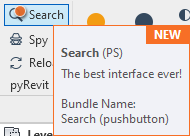
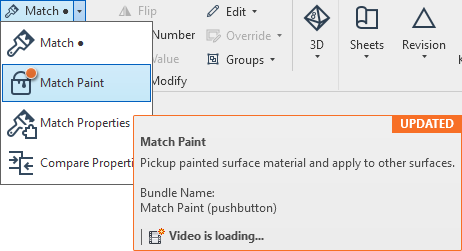
Button Highlighting Directives (Revit ≥ 2018)
You can use provide highlighting directives inside the command bundle metadata. Revit will highlight the button and the tooltip in the interface.
Push-Button Bundle
Push Button bundles include a script that is executed fresh, every time the user clicks on the button. They are the most used bundle in pyRevit.
extension: .pushbutton

requires:
    - *script.*           # note the wildcard. BuildWall_script.py or Analyse-script.cs are both acceptable names
    - bundle.yaml         # includes bundle metadata e.g. tooltip message
                          # OPTIONAL for python scripts only.
                          # python scripts can use the __var__ convention to set bundle metadata

optional:
    - *config.*           # optional config scripts. Revit UI will show a ● in front of the button name e.g. "Match ●"
                          # Shift-Clicking the button, launches this config.* script instead
    - icon.png            # for Revit UI icons
    - icon.png            # for Revit UI icons in Dark mode
    - tooltip.png         # for Revit UI button tooltip image
    - tooltip.mp4         # for Revit UI button tooltip video
    - *help.*             # for Revit UI button help, opening with F1 key
    - lib/                # can include a lib/ directory that hosts modules required by the bundle code
    - bin/                # can include a bin/ directory that hosts binaries required by the bundle code
IronPython Scripts
Push-Button bundles can contain a IronPython *.py file as their main script. pyRevit will run the script with the active IronPython engine.
See Anatomy of IronPython Scripts for more detail on IronPython scripts.
See Configure pyRevit for more information about setting the active IronPython engine version.
CPython Scripts
Push-Button bundles can contain a CPython *.py file as their main script. pyRevit will run the script with the active CPython engine.
See Anatomy of CPython Scripts for more detail on CPython scripts.
See Configure pyRevit for more information about setting the active CPython engine version.
C#, VB.NET Scripts
Push-Button bundles can contain a C# *.cs , or a VB.NET *.vb file as their main script. pyRevit will compile and run the script.
See Anatomy of .NET (C#, VB) Scripts for more detail on CPython scripts.
DynamoBIM Scripts
Push-Button bundles can contain a DynamoBIM *.dyn file as their main script. pyRevit will launch the installed DynamoBIM on the host Revit and asks to run the bundle script.
DynamoBIM Engine Configs
Dynamo has an option to shutdown the executor after running the dynamo script. This means that scripts take longer to run since it has to load dynamo first (and if dynamo needs to check for updates or do other startup tasks that is also added to the script execution time)
You can specify whether to use a clean dynamo engine or keep it in memory for the next executions. Set the option below in your bundle file.
Similarly, the Dynamo Automation mode. If Dynamo Automation is on, dynamo runtime will remain in memory for faster execution. This however causes issues with Dynamo definitions that create windows and GUI to get/report information from/to the user. Since the dynamo definition is initialized once in Automation mode, the GUIs only pop up once on the first execution and will not be opened after. For dynamo scripts containing GUI, the automate engine option must be false
You can also set the other Dynamo Journal Keys in the bundle yaml file
engine:
  dynamo_path: String
  dynamo_path_check_existing: Boolean
  dynamo_force_manual_run: Boolean
  dynamo_model_nodes_info: String
Grasshopper Scripts
Push-Button bundles can contain a Grasshopper *.gh file as their main script. pyRevit will launch the installed Rhino.Inside.Revit on the host Revit and asks to run the bundle script.
Content-Button Bundle
Content Bundles carry contents for Revit, and help with reducing modeling errors by making it easy to place specific contents inside Revit models. This bundle automatically places the specified Revit family file .rfa inside the active Revit document.
content: "..\\A.rfa" # absolute or relative path supported
content_alt: "C:\\Users\\Local Admin\\Documents\\GitHub\\pyRevit\\extensions\\pyRevitDevTools.extension\\pyRevitDev.tab\\Debug.panel\\Bundle Tests.pulldown\\B.rfa" # absolute or relative path supported
extension: .content
requires:
    - *.rfa        # Revit family file to be placed in Revit model when this button is clicked
    - bundle.yaml  # includes bundle metadata e.g. tooltip message
                                   # metadata supported for file path to
                   # relative path for main family: content: "..\\A.rfa"
                   # absolute path for main family: content: "C:\\Users\\Local Admin\\Documents\\GitHub\\pyRevit\\extensions\\pyRevitDevTools.extension\\pyRevitDev.tab\\Debug.panel\\Bundle Tests.pulldown\\B.rfa"
                   # relative path for alternative family (SHIFT+Click): content_alt: "..\\A.rfa"
                   # absolute path for alternative family (SHIFT+Click): content_alt: "C:\\Users\\Local Admin\\Documents\\GitHub\\pyRevit\\extensions\\pyRevitDevTools.extension\\pyRevitDev.tab\\Debug.panel\\Bundle Tests.pulldown\\B.rfa"

optional:
    - *.rfa               # optional content file. Revit UI will show a ● in front of the button name e.g. "Marker ●"
                          # Shift-Clicking the button, places this content inside active Revit model
    - icon.png            # for Revit UI icons
    - icon.dark.png       # for Dark Theme Revit UI
    - tooltip.png         # for Revit UI button tooltip image
    - tooltip.mp4         # for Revit UI button tooltip video
⚠️ Legacy way
Content Bundles carry contents for Revit, and help with reducing modeling errors by making it easy to place specific contents inside Revit models. This bundle automatically places the included Revit family file .rfa inside the active Revit document. The current implementation only allows Revit families but this will be extended in the future to more content types.
extension: .content
requires:
    - *content.rfa        # Revit family file to be placed in Revit model when this button is clicked
    - *content_XXXX.rfa   # content file for specific Revit version e.g. North Symbol_content_2020.rfa
    - bundle.yaml         # includes bundle metadata e.g. tooltip message

optional:
    - *other.rfa          # optional content file. Revit UI will show a ● in front of the button name e.g. "Marker ●"
                          # Shift-Clicking the button, places this content inside active Revit model
    - *other_XXXX.rfa     # optional content file for specific Revit version e.g. North Symbol_other_2020.rfa
    - icon.png            # for Revit UI icons
    - tooltip.png         # for Revit UI button tooltip image
    - tooltip.mp4         # for Revit UI button tooltip video
URL-Button Bundle
URL Bundles open the URL link specified in the bundle file, in the default browser. They are great for creating intranet shortcut buttons.
extension: .urlbutton
requires:
    - bundle.yaml         # includes bundle metadata e.g. tooltip message

optional:
    - icon.png            # for Revit UI icons
    - tooltip.png         # for Revit UI button tooltip image
    - tooltip.mp4         # for Revit UI button tooltip video
URL buttons need to provide the target URL in the bundle file