Installation issues
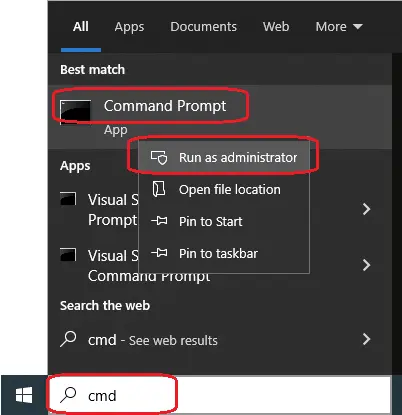
If you are using the Admin installer → Use the command line as admin or do the cli procedure under the Admin user
pyRevit Is Installed But Does Not Load
- Open a command prompt and run
pyrevit attached -
Take a look the
==> Attachmentssection. It should look similar to this. It should show thatmasteris attached to all your installed Revit versions. The report looks similar to this:- If nothing is listed then run==> Attachments master | Product: "2020.1 Update" | Engine: IPY2712 (2712) | Path: "....." master | Product: "2019.2.2 Hotfix" | Engine: IPY2712 (2712) | Path: "....."pyrevit clonesand check to make suremasteris listed as the installed clone- If it is listed, then run==> Registered Clones (full git repos) ==> Registered Clones (deployed from archive/image) master | Deploy: "basepublic" | Version: "4.8.5" | Path: "......"pyrevit attach master default --installedand check again to make sure it is attached. - If it is not listed, then find the installed pyRevit path (default is%APPDATA%/pyRevit-Master) and manually register the master clone by runningpyrevit clones add master <installed path>. Then checkpyrevit clonesto make sure it is registered. Now you can attach it using the command in previous step.
See an example of this fix here
Installation still not working after serveral trys · Issue #1075 · pyrevitlabs/pyRevit
Error dynamically compiling pyRevit runtime
What seems to work in most cases:
- Uninstall pyRevit
- Delete C:\ProgramData and \%AppData%\ pyRevit folders
-
Move all Revit addins to a temporary location. Usual addins locations include:
- %AppData%\Autodesk\Revit\Addins\\<year>
- %AppData%\Autodesk\ApplicationPlugins
- %ProgramData%\Autodesk\Revit\Addins\\<year>
- %ProgramData%\Autodesk\ApplicationPlugins
- [Reboot computer]
- Reinstall pyRevit
- Started each version of Revit confirming pyRevit successfully compiled at startup.
-
Moved all Revit addins that were moved in step 3 back to their original location.
-
you may want to add them one at a time and start a revit session everytime to figure out which ones are causing the issue.
Sentinel One related issues
Favorite solution
More chirurgical:
- Excluded SentinelOne from scanning the Hash of Revit.
to get the SHA1 from each revit version (example for 2020):
Strategies that worked
#1
[Bug]: Can't install pyRevit_5.0.0.25034_signed.exe Revit 2025 · Issue #2577 · pyrevitlabs/pyRevit — ✈ Pre-Flight checks I don't have SentinelOne antivirus installed (see above for the solution) I have searched in the issues (open and closed) but couldn't find a similar issue I have search...
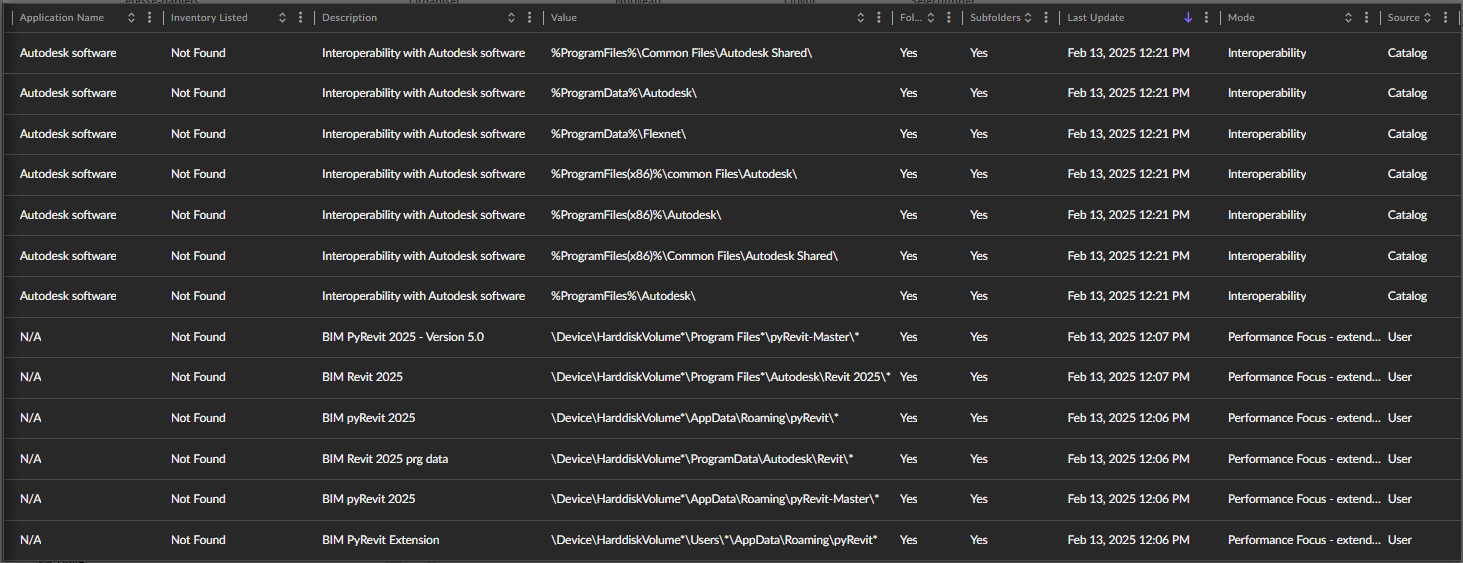
- Exclude pyRevitLoader.dll and Revit exe file
C:\Program Files\Autodesk\Revit 20XX\Revit.exe
%APPDATA%\pyRevit-Master\bin\netfx\engines\IPY342\pyRevitLoader.dll
%APPDATA%\pyRevit-Master\bin\netfx\engines\IPY2712PR\pyRevitLoader.dll
[Bug]: Can't install pyRevit_5.0.0.25034_signed.exe Revit 2025 · Issue #2577 · pyrevitlabs/pyRevit — ✈ Pre-Flight checks I don't have SentinelOne antivirus installed (see above for the solution) I have searched in the issues (open and closed) but couldn't find a similar issue I have search...
OR
- We added a path based exclusion for Revit.exe in a specific directory, then we told SentinelOne to use "Interoperability - extended" which allows Revit.exe to spawn child processes and those should be allowed.
Revit 2022 Crashes with pyRevit and SentinelOne · Issue #1929 · pyrevitlabs/pyRevit
OR
-
As file:
- C:\Program Files\Autodesk\Revit 2024\revit.exe
- C:\Users*\AppData\Roaming\Autodesk\Revit\Addins*\pyRevit.addin
- C:\ProgramData\Autodesk\Revit\Addins*\pyRevit.addin
As folder:
- C:\Users*\AppData\Roaming\pyRevit
- C:\Users*\AppData\Roaming\pyRevit-Master
- C:\Program Files\pyRevit-Master
Exclusion settings in SentinelOne for all exclusions
- Exclusion Type: Path
- OS: Windows
- Include subfolders: checked
- Exclusions Mode: Interoperability
Revit 2024 Crashes when loading but Revit 2022 doesnt · Issue #1866 · pyrevitlabs/pyRevit
OR
- Put exclusions for the Revit executables and for the pyRevit folders under
%appdata%(pyRevitandpyRevit-Master). Do not exclude the whole%appdata%folder: agree the exact paths with your IT team.
Extensions not installing
- Check with your IT if the github.com url are not blocked
PyRevit Extensions Not Installing
If Nothing Works
See Reporting pyRevit Issues if the issue persists.
Where Revit loads add-ins from
Revit reads add-in manifests from several folders. When pyRevit does not load, or loads twice, check each of them for a pyRevit.addin file. Replace [Year] with the Revit version.
Revit 2017 to 2026
| Scope | Folder |
|---|---|
| Current user | %APPDATA%\Autodesk\Revit\Addins\[Year] |
| Current user | %APPDATA%\Autodesk\ApplicationPlugins |
| All users | C:\ProgramData\Autodesk\Revit\Addins\[Year] |
| All users | C:\ProgramData\Autodesk\ApplicationPlugins |
| Autodesk's own add-ins | C:\Program Files\Autodesk\Revit [Year]\AddIns |
Revit 2027 and later
| Scope | Folder |
|---|---|
| Current user | %APPDATA%\Autodesk\Revit\Addins\[Year] |
| Current user | %APPDATA%\Autodesk\ApplicationPlugins |
| All users | C:\Program Files\Autodesk\Revit\Addins\[Year] |
| All users | C:\Program Files\Autodesk\ApplicationPlugins |
| Autodesk's own add-ins | C:\Program Files\Autodesk\Revit [Year]\AddIns |
Be careful with what you disable in Autodesk's own folder.
Source: list of Revit add-in locations.