Keynotes
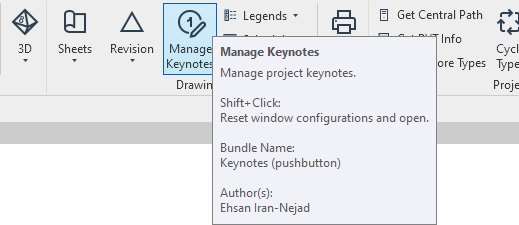
pyRevit has a built in Keynote Manager. The keynote manager, uses a trick to store information inside the standard Revit keynote text files. Let's create an empty model and configure to use the pyRevit Keynote Manager. You can find the tool here
Setting Up the Keynote File
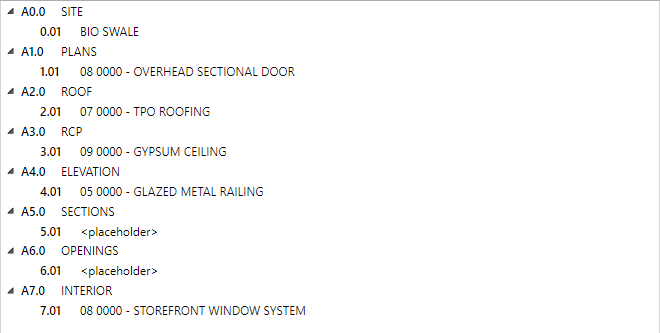
Let's create a keynote text file for this test similar to what is shown below.
A0.0    SITE
A1.0    PLANS
A2.0    ROOF
A3.0    RCP
A4.0    ELEVATION
A5.0    SECTIONS
A6.0    OPENINGS
A7.0    INTERIOR
0.01    BIO SWALE   A0.0
1.01    08 0000 - OVERHEAD SECTIONAL DOOR   A1.0
2.01    07 0000 - TPO ROOFING   A2.0
3.01    09 0000 - GYPSUM CEILING    A3.0
4.01    05 0000 - GLAZED METAL RAILING  A4.0
5.01    <placeholder>   A5.0
6.01    <placeholder>   A6.0
7.01    08 0000 - STOREFRONT WINDOW SYSTEM  A7.0
Now create an empty test model, and launch the Manage Keynotes tool. The tool will inspect the keynote file attached to the model and will notify you that it doesn't have any attached to it. The tool will help you attach a keynote and configure that for the pyRevit Keynote Manager.
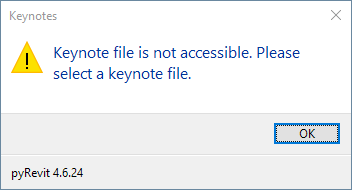
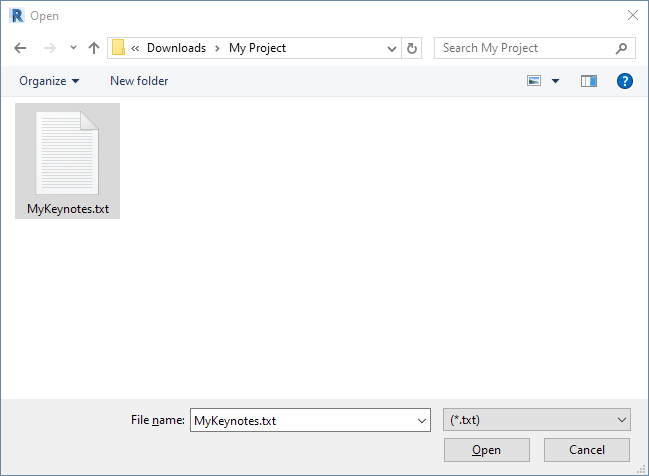
Click OK and select the keynote file we just created
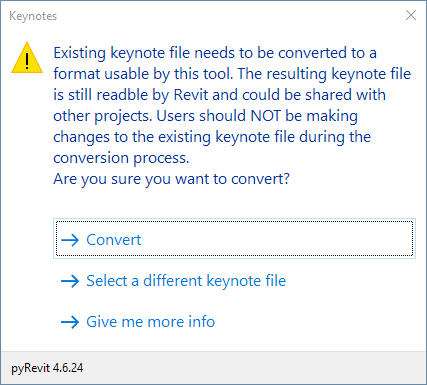
Keynote manager will notify you that the file needs to be configured for this tool. Click Convert
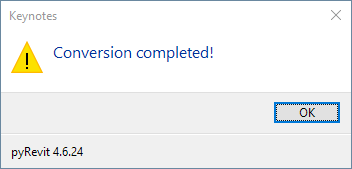
Keynote manager configures the text file, saves it back, and will update you. It also saves a .bak file as a backup of the main keynote file in the same directory.
Take a look at the converted keynote file. It should look similar to this
# @datastore("txt") @source("..\My Project\MyKeynotes.txt") @version("0.1") @encoding("UTF-16")
# ===================== @db(txn_db:"Internal DB")
# --------------------- @table(locks_table:"Locks Table") @sep("\t") @internal(yes) @tags(yes) @history(no) @encap(no) @headers(no) @key(lock_uuid) @uuid(lock_uuid:"") @text(lock_source:"") @text(lock_requester:"") @uuid(lock_conn_uuid:"") @text(lock_dbname:"") @text(lock_tablename:"") @text(lock_recordkey:"")
# ===================== @db(keynotesdb:"pyRevit Keynotes Manager DB")
# --------------------- @table(categories:"Root Keynotes Table") @sep("\t") @internal(no) @tags(no) @history(no) @encap(no) @headers(no) @key(cat_key) @text(cat_key:"") @text(cat_title:"")
A0.0    SITE
A1.0    PLANS
A2.0    ROOF
A3.0    RCP
A4.0    ELEVATION
A5.0    SECTIONS
A6.0    OPENINGS
A7.0    INTERIOR
# --------------------- @table(keynotes:"Keynotes Table") @sep("\t") @internal(no) @tags(no) @history(no) @encap(no) @headers(no) @key(keynote_key) @text(keynote_key:"") @text(keynote_text:"") @text(parent_key:"") @wire(parent_key:cat_key) @wire(parent_key:keynote_key)
0.01    BIO SWALE   A0.0
1.01    08 0000 - OVERHEAD SECTIONAL DOOR   A1.0
2.01    07 0000 - TPO ROOFING   A2.0
3.01    09 0000 - GYPSUM CEILING    A3.0
4.01    05 0000 - GLAZED METAL RAILING  A4.0
5.01    <placeholder>   A5.0
6.01    <placeholder>   A6.0
7.01    08 0000 - STOREFRONT WINDOW SYSTEM  A7.0
All the lines that start with # are invisible to Revit. So this keynote text file is still fully compatible with Revit and you can use it normally, archive it with your project, and not worry about depending on a third-party tool to read the keynotes in your Revit model. pyRevit uses these Comment lines to store metadata about the keynotes. It uses this metadata to
- Organize the keynotes
- Coordinate changes to the keynote text file when multiple users are making changes to the keynotes at the same time
- Store history of changes to keynotes
If you are interested in more advanced information, see DeFFRel DB API for more information about the API that manages this text file.
Manage Keynotes Window
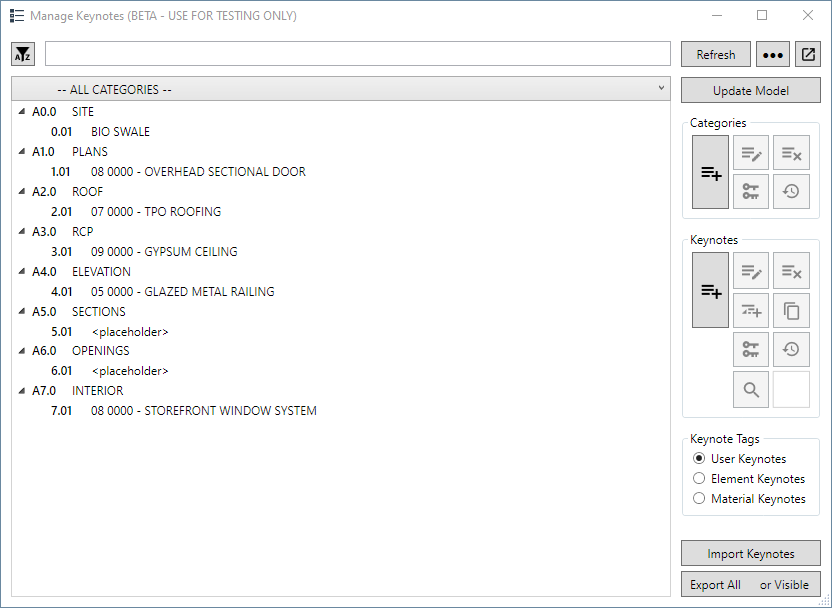
The keynote manager window
- Has a pretty advanced search
- Helps you manage all the keynotes and categories
- Export and Import keynotes
- Create keynotes of different kinds
- Is smart about the location and size of the window, by project!
Search
The search bar at the top of the window, helps you search the keynotes effectively and would filter down the results. The

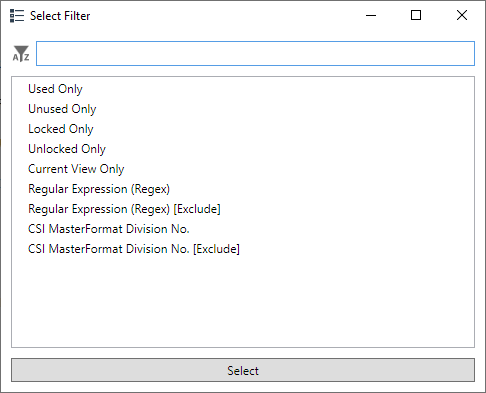
The filter button on the left side, gives you more options to search
Keynote Management
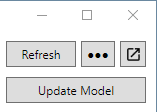
The buttons on the top right, help you refresh the keynotes, find or change the keynote file. Hover over the keys for tooltips.
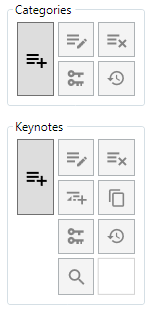
The Categories and Keynote tools help with creating and editing keynotes and categories. Hover over the keys for tooltips.
Browsing Keynotes
The category selector helps filtering down the keynotes shown in the window to a specific category

The main keynote box, shows the keynotes inside the selected keynote category
Creating Categories
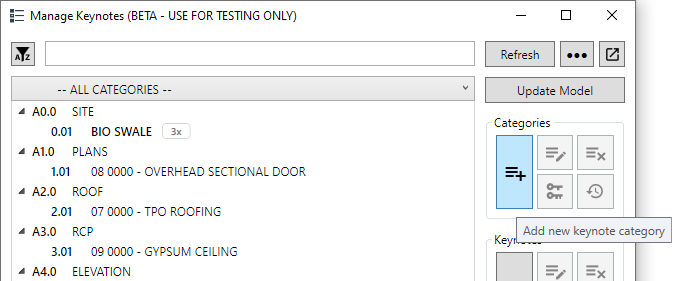
Click on the new category button
The most important step is to select a unique key for this category.
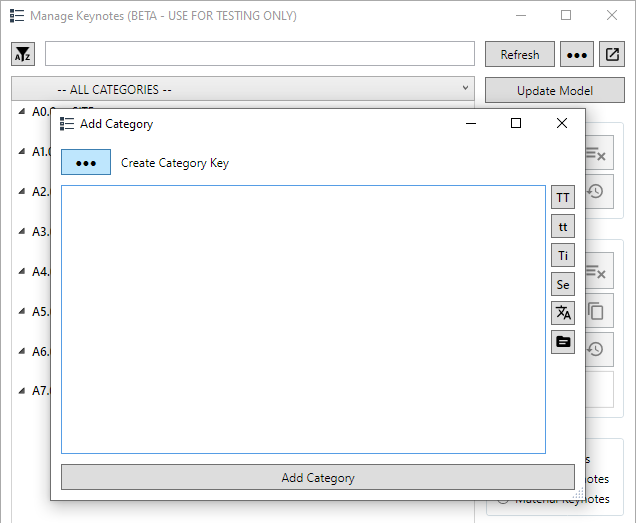
The tool shows all the reserved (already used, in Red) keys in the window. Select a key until there are no items shown in reserved list.
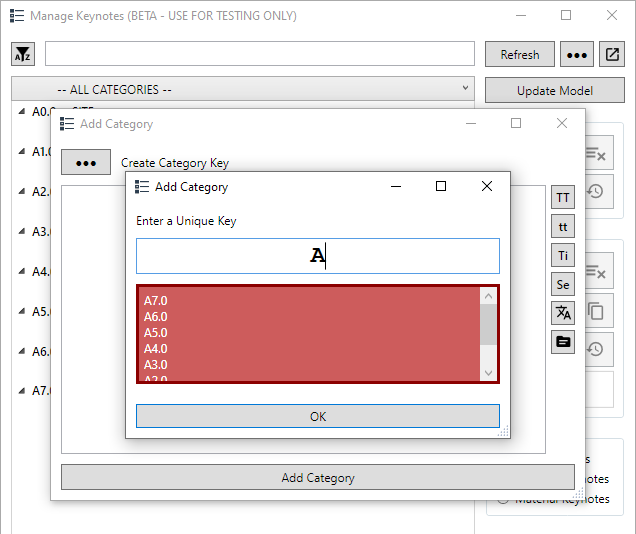
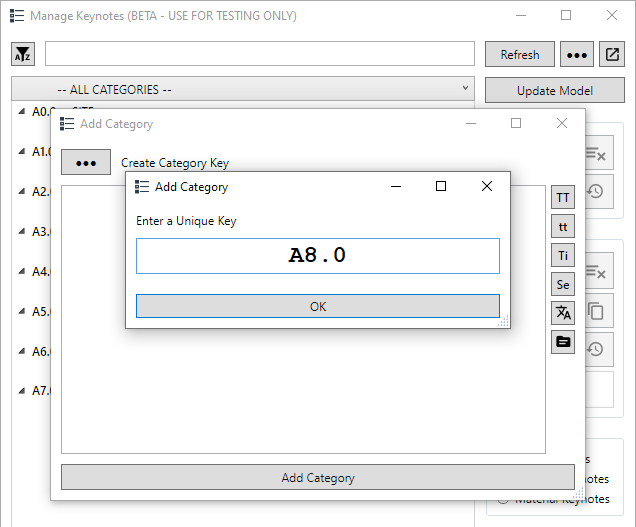
Now type the name of the category in the box. Use the buttons on the side to change the casing if necessary.
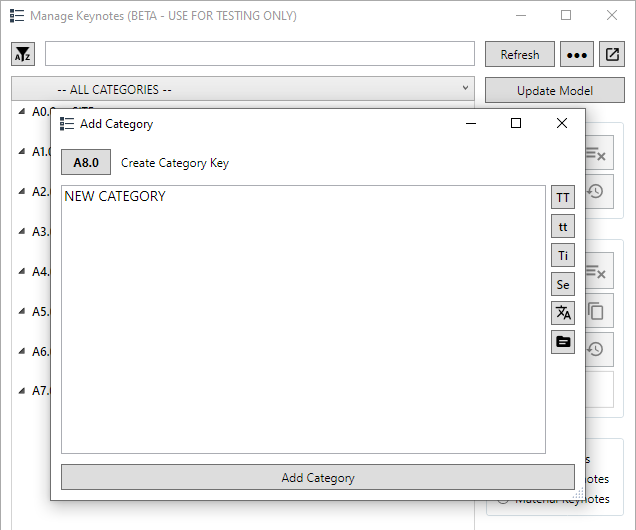
Click Add Category and the category will be added to the keynote file. The category selector will automatically switch to this new category
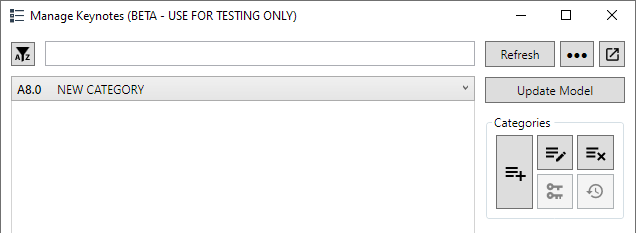
Creating Keynotes
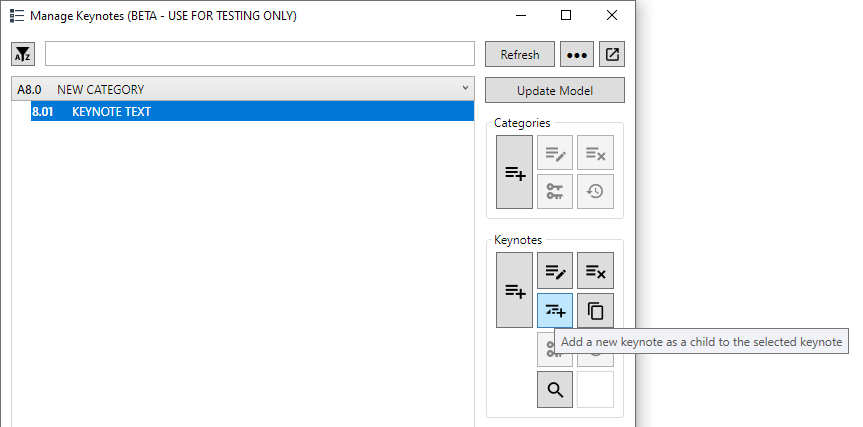
Create keynotes similar to the categories. Remember that every keynote, needs a parent category. The parent category key is shown at the bottom of the Add Keynote window.
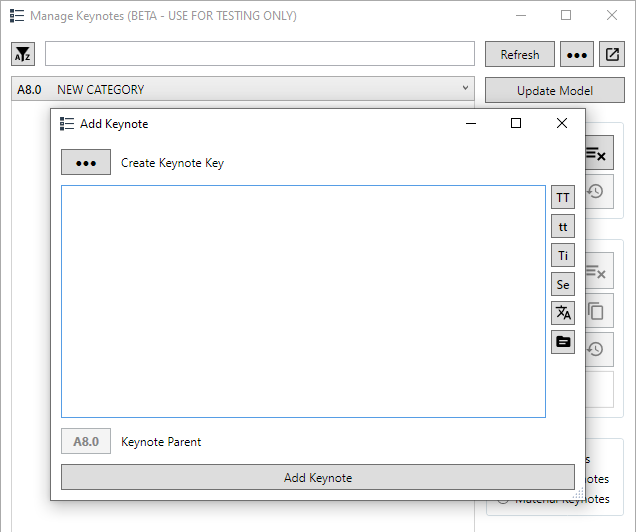
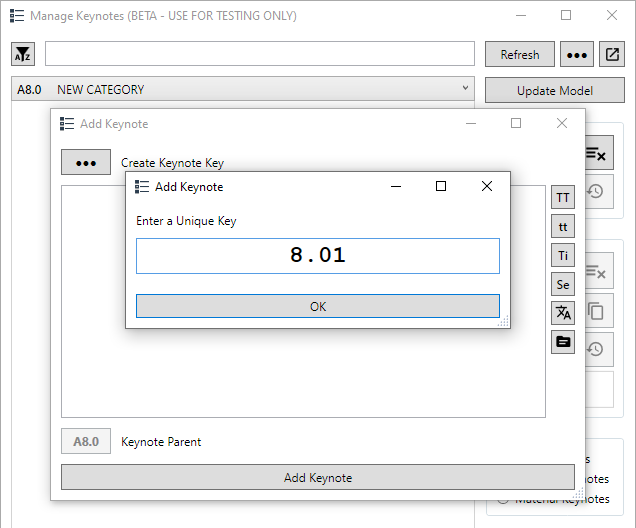
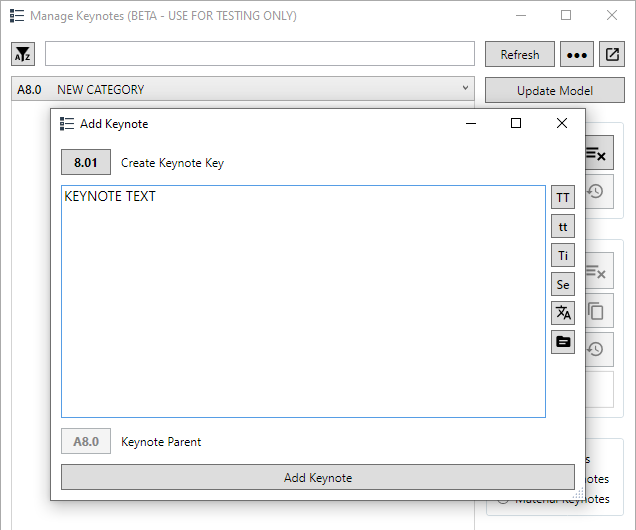
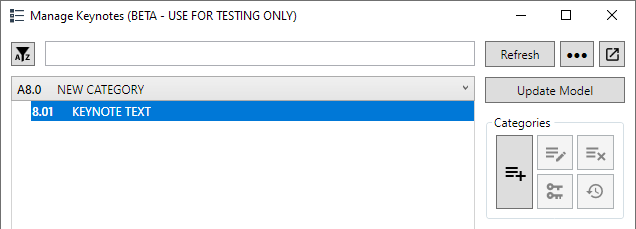
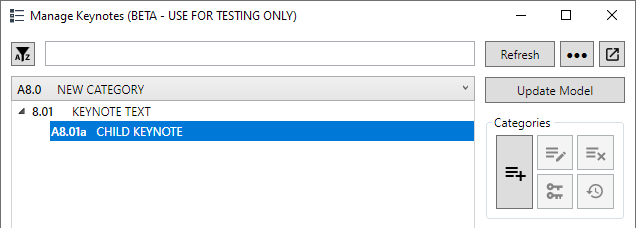
You can also create child keynotes for the selected keynote. Follow the same workflow as creating keynotes. The child keynotes' parent, is the selected parent keynote.
Placing Keynotes
Double-Click on any of the keynotes shown in the main window, to place in your model. You can place multiple keynotes in the model. Hit Escape when done and the tool will apply the correct keynote number to the keynotes.
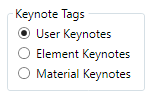
The type selector on the side, determines which type of keynote is placed by the tool
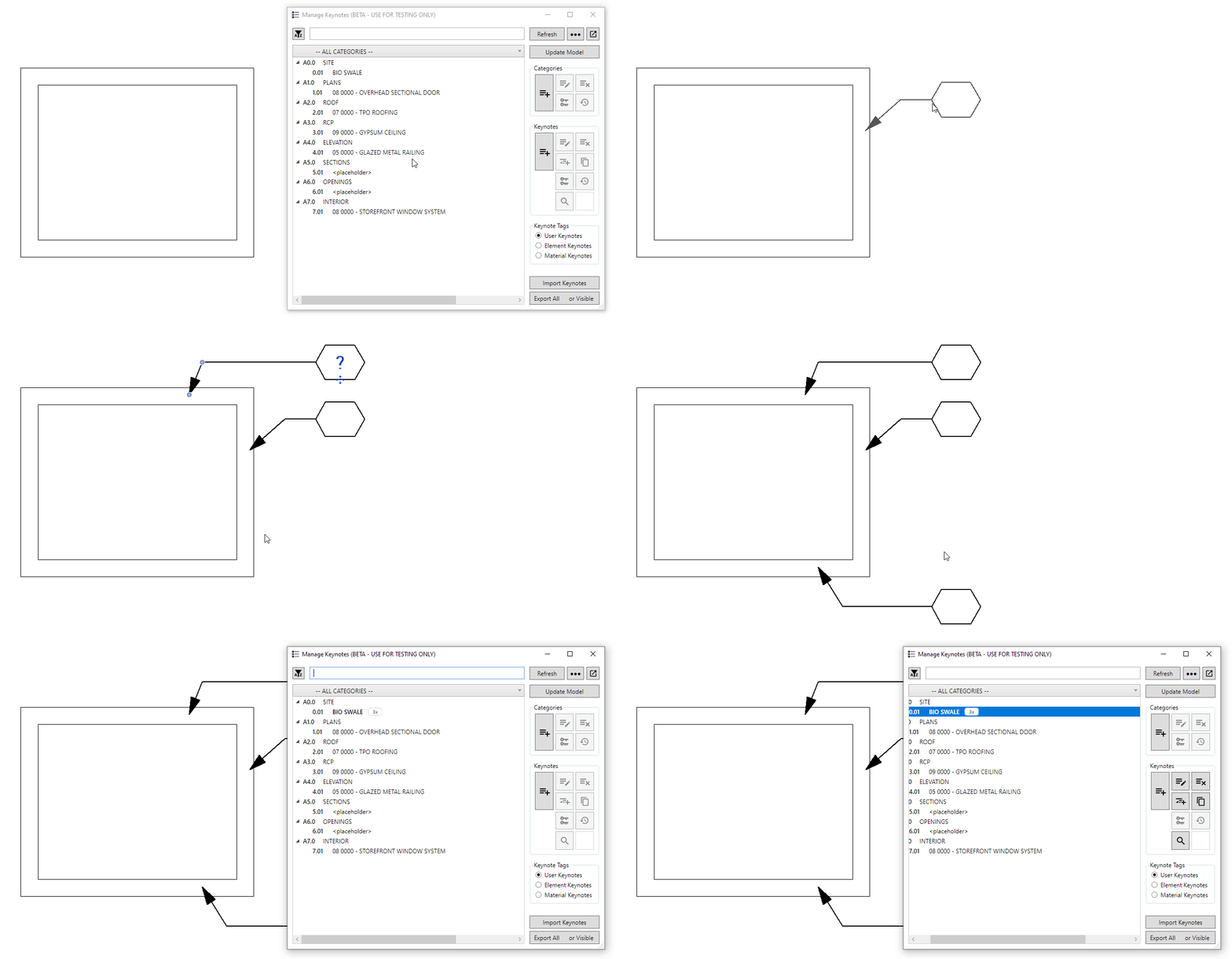
Example of placing multiple keynotes at the same time
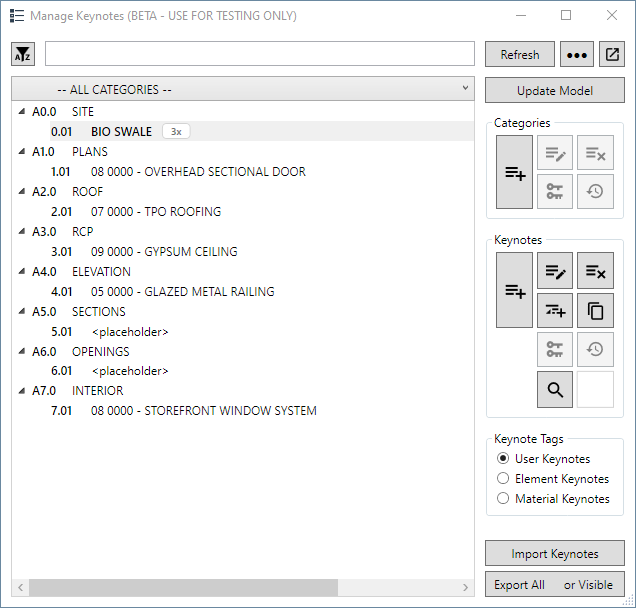
From now on, the tool will show the number of times a keynote is used in a model
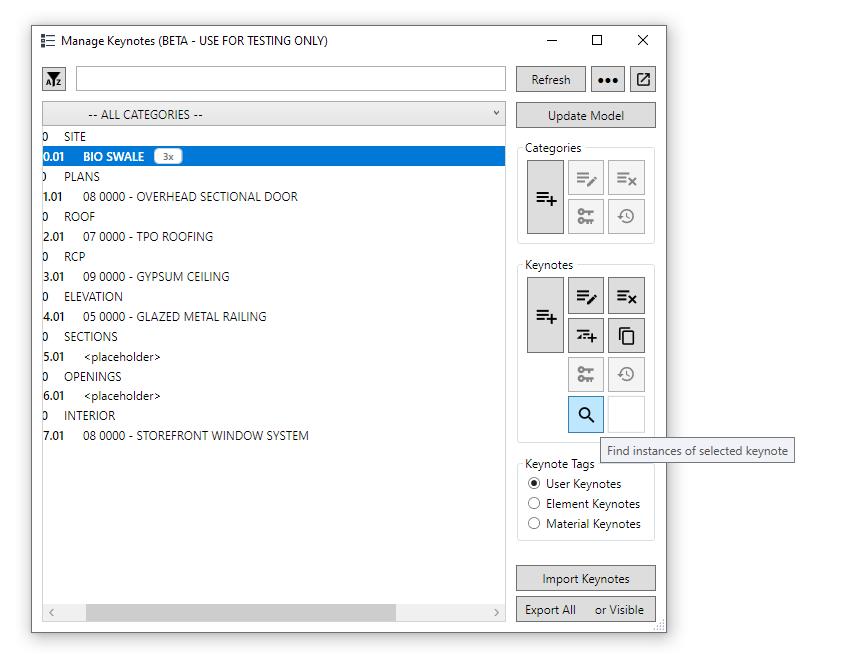
You can click on the Find Keynote Instances to get a list of these keynotes
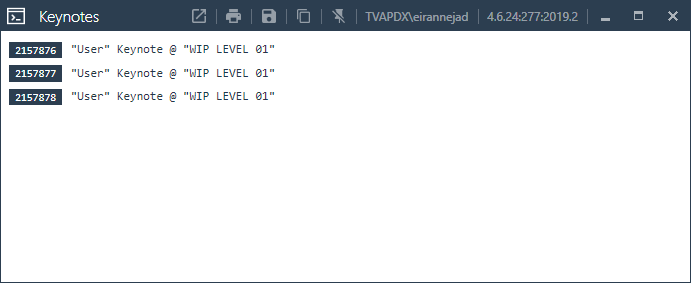
Click on the Keynote Ids (the numbers) and pyRevit will take you to that specific keynote.
Import & Export
You can use the import and export tools to import new keynotes from another file, or export all the keynotes (or visible ones) to a clean new keynote text file.
Keynote Manager can operate in two modes:
- Local Network: in this mode, Keynote Manager is working with
.txtkeynote file that is shared between Revit users on a local network. This means that the same keynote file is being used and modified by multiple users. - BIM360: in this mode, Keynote Manager is working with
.txtkeynote file that is hosted on BIM360 and is made available locally by the Autodesk Desktop Connector.
In either of these modes, Keynote Manager needs to ensure multiple users do not overwrite each others’ work. To achieve that:
-
Local Network: Keynote Manager creates a
.lockfile alongside the keynote text file to notify other Keynote Manager users that the keynote file is being written.Deleting an orphaned
.lockfile when there are no users active, should solve the stuck Keynote Manager problem- BIM360: Keynote Manager uses the Autodesk Desktop Connector API to ask BIM360 to lock the keynote file when a user opens Keynote Manager.
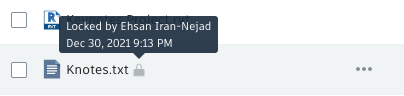
This effectively stops others from writing their changes until the first user has closed Keynote Manager and released the file.
You can unlock the keynote file from BIM360 portal
Edit Locks
When a user edits a keynote, Keynote Manager will write some info inside the keynote file (hidden to Revit) that a user has borrowed that specific keynote for editing. If you have a sticky lock on a specific keynote, manually clear the content of Locks Table in the keynote file. These locks are written in between the two lines below
# --------------------- @table(locks_table:"Locks Table")
>>> locks are listed here...
# ===================== @db(keynotesdb:"pyRevit Keynotes Manager DB")
For example a lock with id tf5n6dURvk+JrZQ5r3gD5g== exists in this keynote file example:
# @datastore("txt") @source("C:\Users\ehsan\Desktop\Keynotes.txt") ...
# ===================== @db(txn_db:"Internal DB")
# --------------------- @table(locks_table:"Locks Table")
# tf5n6dURvk+JrZQ5r3gD5g==  leo-wx-rir  eirannejad  w8/8rO/UOUyP0vs1oS53zA== ...
# ===================== @db(keynotesdb:"pyRevit Keynotes Manager DB")
C1  CATEGORY ONE
C2  OTHER CATEGORY
# --------------------- @table(keynotes:"Keynotes Table")
So to clear the locks, remove the lock lines. Coordinate this with your team so you are the only person changing the file