Input and forms
Effective Input
Alerts
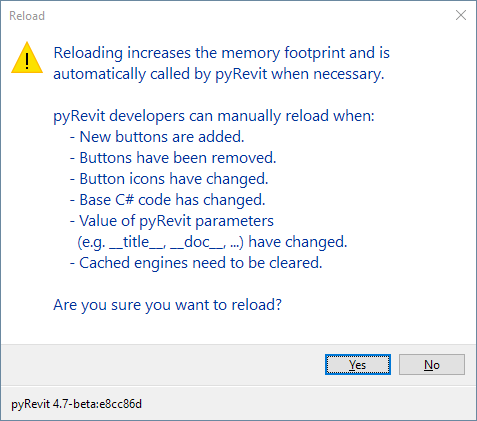
Use forms.alert() and forms.alert_ifnot() to send alerts to the user and ask quick questions
from pyrevit import forms

res = forms.alert("Reloading increases the memory footprint and is "
                  "automatically called by pyRevit when necessary.\n\n"
                  "pyRevit developers can manually reload when:\n"
                  "    - New buttons are added.\n"
                  "    - Buttons have been removed.\n"
                  "    - Button icons have changed.\n"
                  "    - Base C# code has changed.\n"
                  "    - Value of pyRevit parameters\n"
                  "      (e.g. __title__, __doc__, ...) have changed.\n"
                  "    - Cached engines need to be cleared.\n\n"
                  "Are you sure you want to reload?",
                  ok=False, yes=True, no=True)
if res:
    do_stuff()
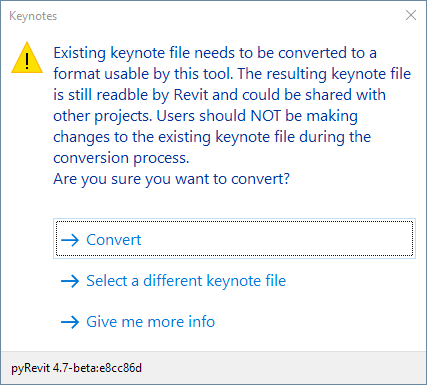
Use the options argument to show options to the user on the alert window
from pyrevit import forms

res = forms.alert("Existing keynote file needs to be converted to "
                  "a format usable by this tool. The resulting keynote "
                  "file is still readble by Revit and could be shared "
                  "with other projects. Users should NOT be making changes to "
                  "the existing keynote file during the conversion process.\n"
                  "Are you sure you want to convert?",
                  options=["Convert",
                           "Select a different keynote file",
                           "Give me more info"])
if res == "Convert":
    do_stuff()
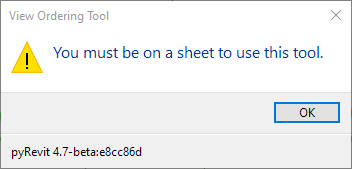
Use the exitscript option to end the script if user says No, or hits OK
from pyrevit import forms

forms.alert('You must be on a sheet to use this tool.', exitscript=True)
# if user says no, the alert function will end the script
# and the command does not execute the next line
do_stuff()
Use the alert_ifnot to check for a condition and show the alert based on the results
# asks "Are you sure?" if value > 12
# exits the script if user says No
forms.alert_ifnot(value > 12,
                  'Are you sure?',
                  yes=True, no=True, exitscript=True)
Toast
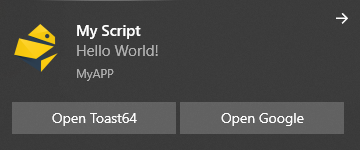
Use forms.toast() to send a toast notification (Windows 10 only)
from pyrevit import forms

forms.toast(
    "Hello World!",
    title="My Script",
    appid="MyAPP",
    click="https://eirannejad.github.io/pyRevit/",
    actions={
        "Open Google":"https://google.com",
        "Open Toast64":"https://github.com/go-toast/toast"
        })
Command Options
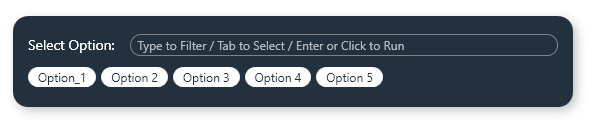
Use the forms.CommandSwitchWindow to present options to the user and ask for a choice
from pyrevit import forms

selected_option = forms.CommandSwitchWindow.show(
    ['Option_1', 'Option 2', 'Option 3', 'Option 4', 'Option 5'],
     message='Select Option:',
)

if selected_option == 'Option 2':
    do_stuff()
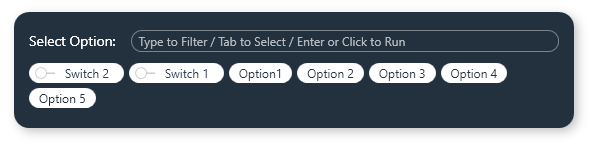
Use the switches option to provide toggle switches to modify your command behaviour
selected_option, switches = \
    forms.CommandSwitchWindow.show(
        ['Option_1', 'Option 2', 'Option 3', 'Option 4', 'Option 5'],
        switches=['Switch 1', 'Switch 2'],
        message='Select Option:',
        recognize_access_key=True
        )

if selected_option:
    print('Selected Option: {}'
          '\n Switch 1 = {}'
          '\n Switch 2 = {}'.format(selected_option,
                                    switches['Switch 1'],
                                    switches['Switch 2']))
For example the Rename Views tool provides a switch to print a report or not
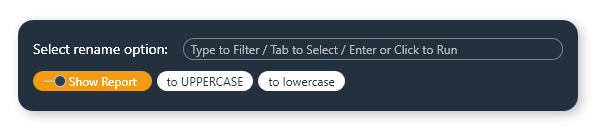
The recognize_access_key option will translate the _ characters in the option name to ALT+? commands. In the example above Option_1 configures the window to allow the ALT+1 combination to select this option. (This is a WPF feature )
Warning Bar
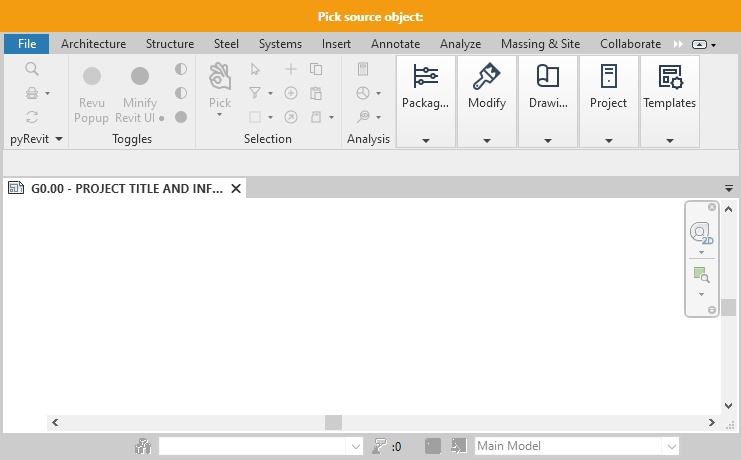
Use the forms.WarningBar context manager to show a warning or message bar on top of the Revit window
Pick / Save (Excel ) File
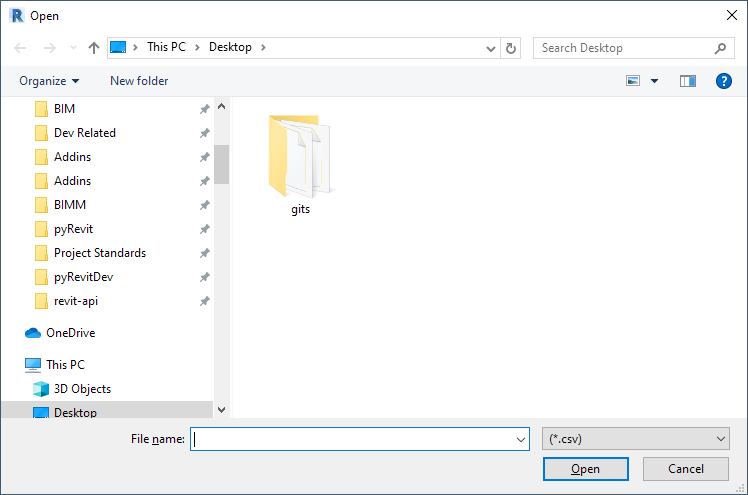
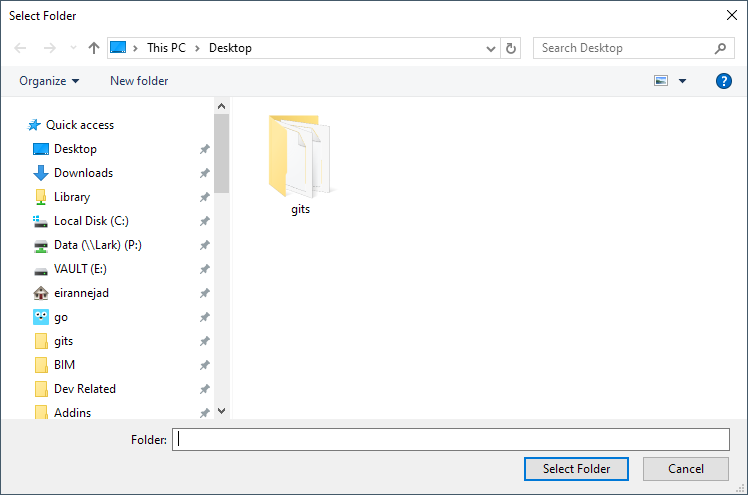
These methods are great for asking for a file, excel file, or a directory for your command operation
See forms.pick_file(), forms.pick_excel_file(), forms.save_file(), forms.save_excel_file(), forms.pick_folder()
from pyrevit import forms

# ask for file
source_file = forms.pick_file(file_ext='csv')
if source_file:
    do_stuff()
Selecting an Option
Select Views
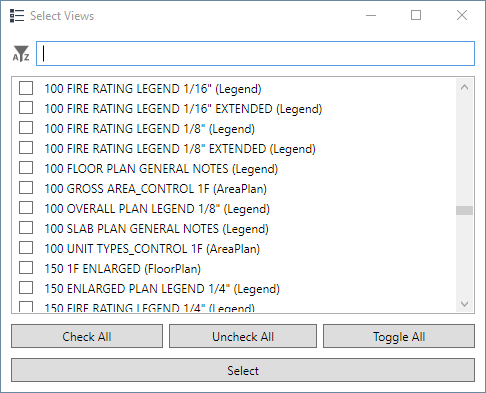
Use forms.select_views() to ask for a selection of views
# use more advanced options to filter

legends = forms.select_views(
    title='Select Legend Views',
    filterfunc=lambda x: x.ViewType == DB.ViewType.Legend
)
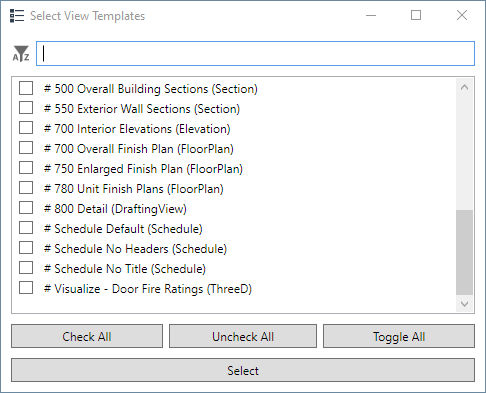
Select View Templates
Use forms.select_viewtemplates() to ask for a selection of view templates
from pyrevit import forms

selected_viewtemplates = forms.select_viewtemplates()
if selected_viewtemplates:
    do_stuff()
Select Schedules
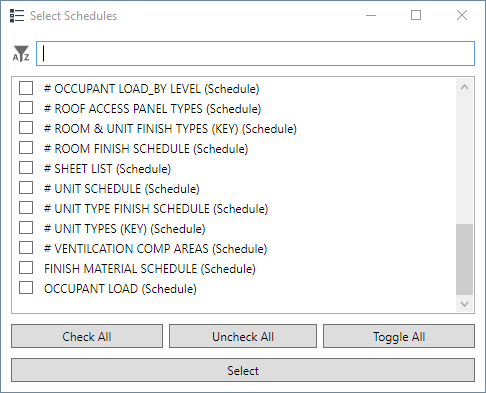
Use forms.select_schedules() to ask for a selection of schedules
from pyrevit import forms

selected_schedules = forms.select_schedules()
if selected_schedules:
    do_stuff()
Select Sheets
Use forms.select_sheets() to ask for a selection of sheets
Select Revisions
Use forms.select_revisions() to ask for a selection of revisions
from pyrevit import forms

selected_revisions = forms.select_revisions()
if selected_revisions:
    do_stuff()
Select TitleBlocks
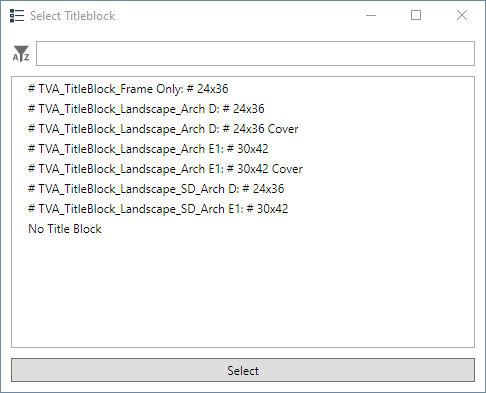
Use forms.select_titleblocks() to ask for a selection of titleblocks
from pyrevit import forms

selected_titleblocks = forms.select_titleblocks()
if selected_titleblocks:
    do_stuff()
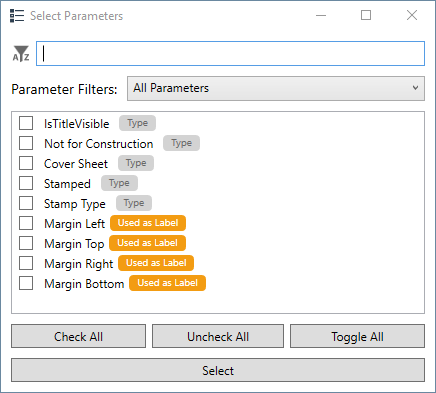
Select Element Parameters
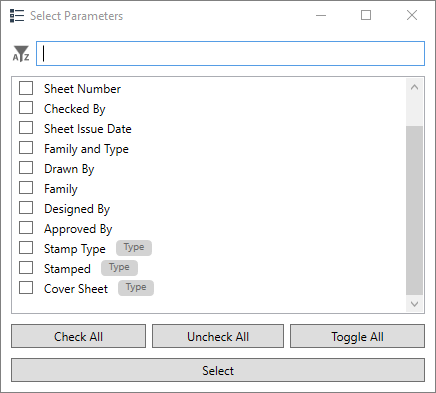
Use forms.select_parameters() to ask for a selection of type or instance parameters on a Revit element
from pyrevit import forms, revit

element = revit.pick_element()
selected_parameters = forms.select_parameters(element)
if selected_parameters:
    do_stuff_with_parameters()
Select Family Parameters
Use forms.select_family_parameters() to ask for a selection of type or instance parameters on a Revit Famiy Document.
from pyrevit import forms, revit

doc = revit.doc

selected_parameters = forms.select_family_parameters(doc)
if selected_parameters:
    do_stuff_with_parameters()
Select an Open Document
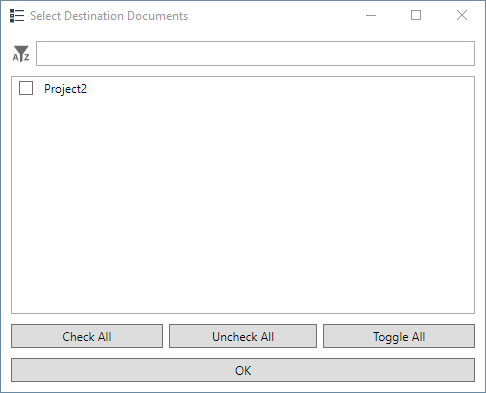
Use forms.select_open_docs() to ask for a selection of schedules
from pyrevit import forms

dest_docs = forms.select_open_docs(title='Select Destination Documents')
if dest_docs:
    do_stuff()
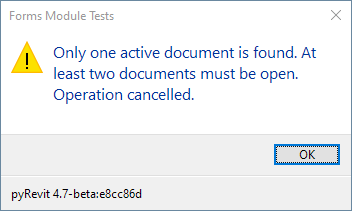
The method will show an alert if there is only one document open
Select From List (Single, Multiple)
Use the generic forms.SelectFromList to create your own customized selection windows
from pyrevit import forms
items = ['item1', 'item2', 'item3']
res = forms.SelectFromList.show(items, button_name='Select Item')
if res == 'item1':
    do_stuff()
You can also include Revit elements as the options
ops = [viewsheet1, viewsheet2, viewsheet3]
res = forms.SelectFromList.show(ops,
                                multiselect=False,
                                name_attr='Name',
                                button_name='Select Sheet')
if res and res.Id == viewsheet1.Id:
    do_stuff()
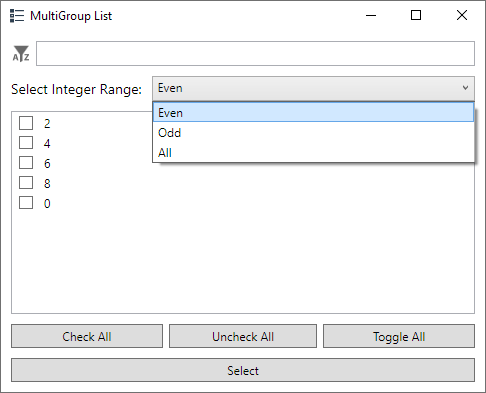
The options also support groups of lists. When option groups are used, a combo box group selector will appear on the window
forms.SelectFromList.show(
        {'All': '1 2 3 4 5 6 7 8 9 0'.split(),
         'Odd': '1 3 5 7 9'.split(),
         'Even': '2 4 6 8 0'.split()},
        title='MultiGroup List',
        group_selector_title='Select Integer Range:',
        multiselect=True
    )
An example of grouped options, are grouping sheets into sheet sets
ops = {'Sheet Set A': [viewsheet1, viewsheet2, viewsheet3],
       'Sheet Set B': [viewsheet4, viewsheet5, viewsheet6]}
res = forms.SelectFromList.show(ops,
                                multiselect=True,
                                name_attr='Name',
                                group_selector_title='Sheet Sets',
                                button_name='Select Sheets')
if res:
    selected_ids = [sheet.Id for sheet in res]
    if viewsheet1.Id in selected_ids:
        do_stuff()
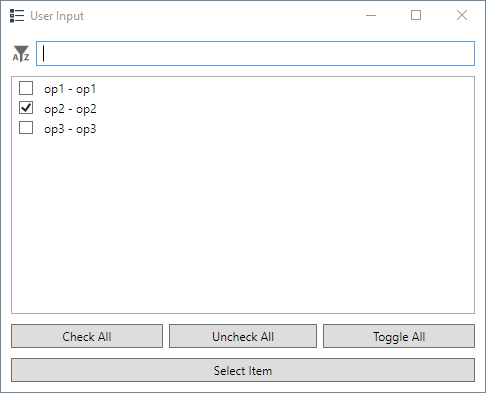
This module also provides a wrapper base class TemplateListItem for when the checkbox option is wrapping another element, e.g. a Revit ViewSheet. Derive from this base class and define the name property to customize how the checkbox is named on the dialog.
from pyrevit import forms

class MyOption(forms.TemplateListItem):
    @property
    def name(self):
        return "Option: {}".format(self.item)

ops = [MyOption('op1'), MyOption('op2', checked=True), MyOption('op3')]
res = forms.SelectFromList.show(ops,
                                multiselect=True,
                                button_name='Select Item')
Select an Image
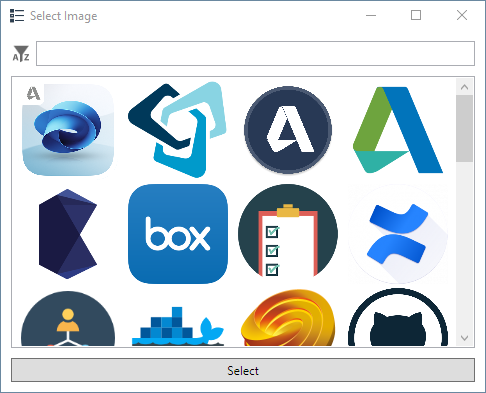
Use forms.select_image() to select from a series of images
from pyrevit import script
from pyrevit import forms

images = forms.select_image(
    script.get_bundle_files('images/')
)

if images :
    do_stuff()
Select a Swatch
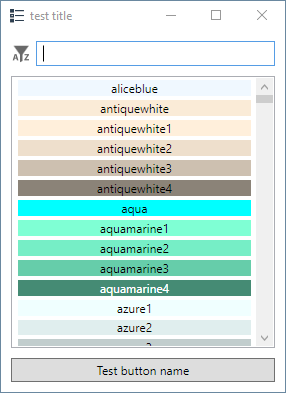
Use forms.select_swatch() to ask for a string input
Asking for Input
Ask for Text Input
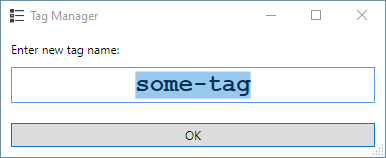
Use forms.ask_for_string() to ask for a string input
from pyrevit import forms

forms.ask_for_string(
    default='some-tag',
    prompt='Enter new tag name:',
    title='Tag Manager'
)
Ask for Unique String Input
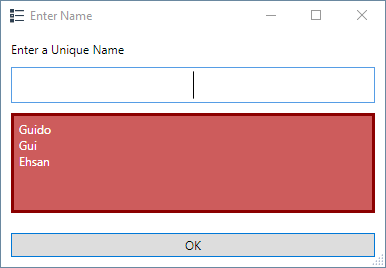
Use forms.ask_for_unique_string() to ask for a unique string input
from pyrevit import forms

forms.ask_for_unique_string(
    prompt='Enter a Unique Name',
    title=self.Title,
    reserved_values=['Ehsan', 'Gui', 'Guido']
)
Ask for Single Input
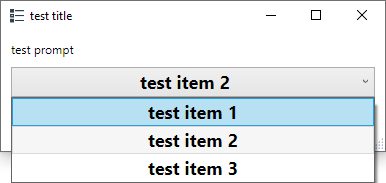
Use forms.ask_for_one_item() to ask for an input from a fixed list
from pyrevit import forms

forms.ask_for_one_item(
    ['test item 1', 'test item 2', 'test item 3'],
    default='test item 2',
    prompt='test prompt',
    title='test title'
)
Ask for a Date
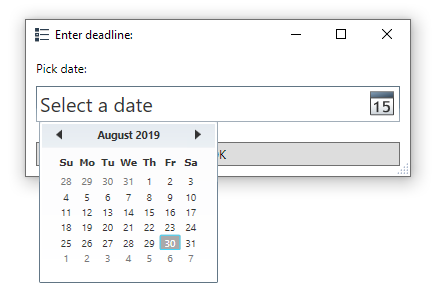
Use forms.ask_for_date() to ask for a string input
Checking Conditions and Informing the User
Check Model is Workshared
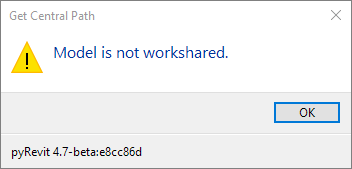
Use forms.check_workshared() to make sure the model is workshared. If not a prompt will be shown to the user automatically.
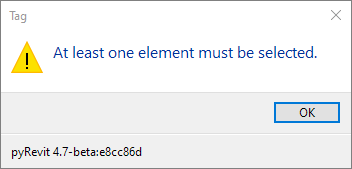
Check There is Selection
Use forms.check_selection() to make sure there are one or more selected elements. If not a prompt will be shown to the user automatically.
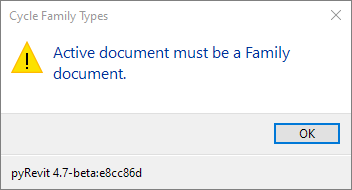
Check Active Document is a Family
Use forms.check_familydoc() to make sure the active document is a Revit family document. If not a prompt will be shown to the user automatically.
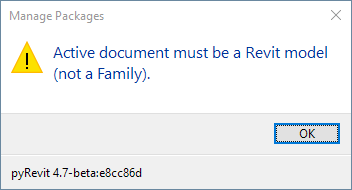
Check Active Document is a Model
Use forms.check_modeldoc() to make sure the active document is a Revit model document. If not a prompt will be shown to the user automatically.
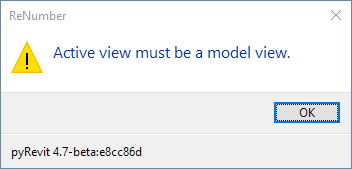
Check Active View is a Model View
Use forms.check_modelview() to make sure the active view is a Revit model view. If not a prompt will be shown to the user automatically.
Check Active View is a Specific View Type
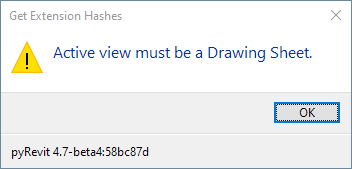
Use forms.check_viewtype() to make sure the active view is of a specific view type (DB.ViewType). If not a prompt will be shown to the user automatically.
from pyrevit import forms
from pyrevit import revit, DB

if forms.check_viewtype(revit.active_view, DB.ViewType.DrawingSheet):
   do_stuff()
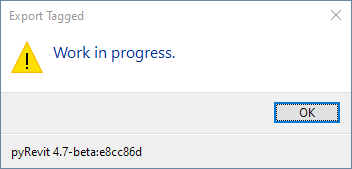
Inform Work In Progress Tool
Use forms.inform_wip() to inform the user that your tool is a Work in Progress