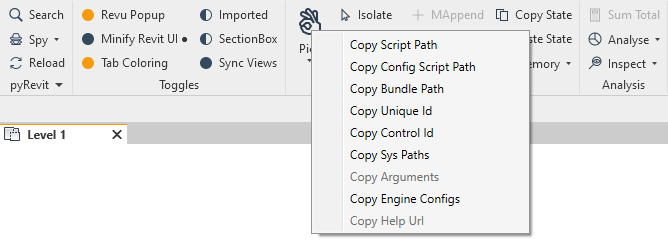
Click modes
SHIFT-Click: Config (or Alternative) Mode
SHIFT-Clicking on a button will run the config script. This config script is generally used to configure the main tool. Try Shift-Clicking on the Match tool in pyRevit → Modify panel and see the configuration window. Then try Shift clicking on the pyRevit Settings tool and see what it does.
When you are providing a config script in your bundle, or manage the SHIFT-Click inside your script, make sure the tooltip describes both behaviours and options. Follow the format below:
"Tooltip text for main script"
Shift-Click:
"Tooltip for config or alternative function"
IronPython and CPython Scripts
Note
If you provide a secondary config script in your bundle, the main script will never get executed on SHIFT-Clicking your tool since the convention is to run the config script first. If you want to handle the ⇧ + Click inside your main code, make sure there is no config script inside your bundle.
If you don’t define the configuration script, you can check the value of EXEC_PARAMS.config_mode in your scripts to change script behaviour. This is the method that the Settings command is using to open the config file location in explorer:
from pyrevit import EXEC_PARAMS

if EXEC_PARAMS.config_mode:
    do_task_A()
else:
    do_task_B()

# older scripts check the value of builtin __shiftclick__ directly
# but the above method is preferred
if __shiftclick__:
    do_task_A()
else:
    do_task_B()
.NET Scripts
SHIFT-Click on a button that contains .NET scripts, will run the config script if it exists.
You can also follow the example below, to check if the user has SHIFT-Clicked your tool, inside the main script.
See Anatomy of .NET (C#, VB) Scripts for more information on the structure of pyRevit .NET scripts.
// import pyRevit runtime namespace
using pyRevitLabs.PyRevit.Runtime.Shared;

namespace MyPyRevitDotNetCommands
{
   public class TestConfigMode : IExternalCommand
   {
      // add a public field with type pyRevitLabs.PyRevit.Runtime.Shared.ExecParams
      public ExecParams execParams;

      public Result Execute(ExternalCommandData revit, ref string message, ElementSet elements)
      {
         // check the value of ConfigMode in you code
         if (execParams.ConfigMode)
             DoTaskA();
         else
             DoTaskB();

         return Result.Succeeded;
      }
   }
}
' import pyRevit runtime namespace
Imports pyRevitLabs.PyRevit.Runtime.Shared

Public Class TestDebugMode
    Implements IExternalCommand

    ' add a public field with type pyRevitLabs.PyRevit.Runtime.Shared.ExecParams
    Public execParams As ExecParams

    Public Function Execute(ByVal revit As ExternalCommandData, _
                            ByRef message As String, _
                            ByVal elements As ElementSet) As Autodesk.Revit.UI.Result
                                Implements IExternalCommand.Execute
        ' check the value of ConfigMode in you code
        If execParams.ConfigMode Then
            DoTaskA()
        Else
            DoTaskB()
        End If

        Return Autodesk.Revit.UI.Result.Succeeded
    End Function
End Class
DynamoBIM and Grasshopper Scripts
SHIFT-Click on a button that contains DynamoBIM, or Grasshopper scripts, will run the config script if it exists. This will provide a method to include a second scripts inside the same bundle as alternative function of the tool.
Currently there is no mechanism for checking the value of Config Mode in DynamoBIM or Grasshopper scripts.
CTRL-Click: Debug Mode
CTRL-Clicking on a button will run the script in DEBUG mode and will allow the script to print all debug messages.
IronPython and CPython Scripts
You can check the value of EXEC_PARAMS.debug_mode variable to see if the script is running in Debug mode and change script behaviour.
from pyrevit import EXEC_PARAMS

if EXEC_PARAMS.debug_mode:
    do_task_A()
else:
    do_task_B()

# older scripts check the value of builtin __forceddebugmode__directly
# but the above method is preferred
if __forceddebugmode__:
    do_task_A()
else:
    do_task_B()
.NET Scripts
You can also follow the example below, to check if the user has CTRL-Clicked your tool, inside the main script.
See Anatomy of .NET (C#, VB) Scripts for more information on the structure of pyRevit .NET scripts.
// import pyRevit runtime namespace
using pyRevitLabs.PyRevit.Runtime.Shared;

namespace MyPyRevitDotNetCommands
{
   public class TestDebugMode : IExternalCommand
   {
      // add a public field with type pyRevitLabs.PyRevit.Runtime.Shared.ExecParams
      public ExecParams execParams;

      public Result Execute(ExternalCommandData revit, ref string message, ElementSet elements)
      {
         // check the value of DebugMode in you code
         if (execParams.DebugMode)
             DoTaskA();
         else
             DoTaskB();

         return Result.Succeeded;
      }
   }
}
' import pyRevit runtime namespace
Imports pyRevitLabs.PyRevit.Runtime.Shared

Public Class TestDebugMode
    Implements IExternalCommand
    ' add a public field with type pyRevitLabs.PyRevit.Runtime.Shared.ExecParams
    Public execParams As ExecParams

    Public Function Execute(ByVal revit As ExternalCommandData, _
                            ByRef message As String, _
                            ByVal elements As ElementSet) As Autodesk.Revit.UI.Result
                                Implements IExternalCommand.Execute
        ' check the value of DebugMode in you code
        If execParams.DebugMode Then
                DoTaskA()
        Else
                DoTaskB()
        End If

        Return Autodesk.Revit.UI.Result.Succeeded
    End Function
End Class
DynamoBIM and Grasshopper Scripts
CTRL-Click on a button that contains DynamoBIM, or Grasshopper scripts, will open the DynamoBIM, or Grasshopper GUI and runs the script. This will provide a chance for the user to see the errors and reports provided by the DynamoBIM, or Grasshopper GUI.
Currently there is no mechanism for checking the value of Debug Mode in DynamoBIM or Grasshopper scripts.
ALT-Click: Show Script file in Explorer
ALT-Clicking on a button will show the associated script file in Windows Explorer.
ALT-SHIFT-Click: Show Config Script file in Explorer
ALT-SHIFT-Clicking on a button will show the associated config script file in Windows Explorer. This only applies to the tools that show a ● on the button name.
CTRL-ALT-SHIFT-Click: Reload Engine
If you are using pyRevit Rocket mode, this keyboard combination will force pyRevit to discard the cached engine for this command and use a new fresh engine. If you are developing scripts for pyRevit and using external modules, you’ll need to use this keyboard combination after changes to the imported module source codes. Since the modules are already imported in the cached engine, you would need a new fresh engine to reload the modules.
IronPython Scripts
Cleans up all the cached engines for a fresh start.
CPython Scripts
The CPython interpreter stays alive for the whole Revit session, so imported modules are not cleared. Reload the module in your script with importlib.reload(), or restart Revit.
.NET Scripts
Cleans up all the cached compiled assemblies for a fresh start.
DynamoBIM and Grasshopper Scripts
Does nothing.
SHIFT-WIN-Click: pyRevit Button Context Menu
Shows the context menu for the pyRevit command.